Zoho Books Setup Guide for Accountants: Complete 2026 Setup Checklist
Set up Zoho Books for accounting firms managing eCommerce clients on Shopify, Amazon, and WooCommerce: COA templates, bank feeds, automation, and multi-client workflows.
To set up Zoho Books for an accounting practice: build one template client organization with the correct fiscal year, base currency, and tax configuration before touching anything else. That template is what you clone for every new client. Get those foundation settings wrong once and you carry that mistake across your entire portfolio; base currency in particular cannot be changed after transactions are recorded. The steps below cover each decision in sequence: plan selection, chart of accounts, bank feeds, automation, and the eCommerce-specific configuration for Shopify, Amazon, and WooCommerce clients that most generic guides skip entirely.
Scaling that setup across 20, 50, or 100 clients is a separate problem from getting it right once. eCommerce clients make it harder: Shopify, Amazon, and WooCommerce payouts arrive as net settlements with fees already deducted. Standard COA structures break immediately. Manual reconciliation work piles up each month until someone fixes the root setup. With Q4 and BFCM approaching, practices that have this right are the ones getting inbound calls from sellers evaluating their 2027 accounting stack. If your clients are heading into peak season, the BFCM inventory planning guide for Shopify and Amazon sellers covers the inventory side of the October prep window alongside this accounting setup.
If you want hands-on help, Zolify offers a complete Zoho Books implementation built around your firm's chart of accounts, bank feeds, and client structure.
Already running Zoho Books but need consistent support? Our managed Zoho Books subscription covers ongoing reconciliation, reporting, and optimization so your team can focus on advisory work.
What Zoho Books offers accountants
Zoho Books is cloud accounting software built for multi-client practices. A single Zoho login gives your team access to all client organizations; each client's data stays isolated with its own users, transactions, and settings. The Accountant user role provides full access across all client books without separate credentials per client.
Core capabilities: double-entry bookkeeping, automated bank feeds and reconciliation, invoicing and billing, sales tax tracking, and standard financial reporting (Profit and Loss, Balance Sheet, Cash Flow). Native integrations with Zoho CRM, Zoho Inventory, and Zoho Analytics connect client data, stock levels, and practice-wide reporting without middleware.
For eCommerce practices, the integrations with Shopify, Amazon, and WooCommerce are where Zoho Books earns its place. Marketplace payout reconciliation, per-channel revenue accounts, and multi-currency support for international selling are built into the product rather than bolted on through add-ons.
Why accountants are choosing Zoho Books
Many practices are moving from QuickBooks Online because of pricing, automation depth, and the Zoho ecosystem's breadth. See our Zoho Books vs QuickBooks comparison for a full feature and cost breakdown.
One Zoho login covers all client books. Each organization stays isolated, so your team stops juggling separate logins per client.
The per-client cost runs 30–50% lower than QuickBooks Online. At 20+ clients, that's a meaningful number.
On automation, Zoho Books goes deeper than QuickBooks out of the box: bank rules, workflow rules, scheduled functions, and Zoho Flow. For eCommerce clients with hundreds of daily orders across multiple payout channels, that automation headroom is what keeps the engagement profitable rather than a time sink.
Zoho Books connects natively to Zoho CRM, Zoho Projects, and the rest of the Zoho suite. No Zapier needed. Zoho's APIs and Deluge scripting also let you build custom automations around how your firm actually works.
Practices that come to Zolify for this switch typically go live in 4–6 weeks. With 100+ Zoho Books implementations completed, a chartered accountant on staff, and Official Zoho Authorized Partner status, we've seen every configuration mistake that adds weeks of reconciliation cleanup and we scope setups to avoid them from day one. For eCommerce practices managing Shopify and Amazon clients, that means getting the per-channel COA, bank rules, and settlement reconciliation right before the first payout hits.
Zoho Books vs QuickBooks for accounting practices
| Feature | Zoho Books | QuickBooks Online |
|---|---|---|
| Multi-client login | Single Zoho login across all client organizations | Requires separate login per client unless using QBO Accountant |
| Accountant user role | Included on all paid plans | Included via QuickBooks Online Accountant (free portal) |
| Per-client cost | 30–50% lower at comparable feature tier | Higher per-client at scale; pricing increases with client count |
| eCommerce integrations | Native: Shopify, Amazon, WooCommerce, eBay | Third-party add-ons required (A2X, Webgility, etc.) |
| Automation depth | Workflow rules, Deluge scripting, Zoho Flow | Basic workflow rules; no native scripting environment |
| Native ecosystem | Zoho CRM, Inventory, Analytics, Projects, Desk | Primarily accounting; limited native adjacent apps |
| Migration support | Migration tools available; Zolify handles data transfer | Migration from Zoho requires manual export/import |
For a plan-by-plan cost breakdown with eCommerce-specific features, see Zoho Books vs QuickBooks for eCommerce sellers.
Setting up Zoho Books: step-by-step
Step 1: Choose the right plan
For accounting practices, the plan choice depends on your client model:
| Use Case | Recommended Setup | Notes |
|---|---|---|
| Managing client books directly | One Zoho Books organization per client; firm team added as Accountant users | Clients billed directly or bundled into your fees |
| Migrating the firm's own books | One organization for your firm | Choose a plan based on transaction volume and user count |
| Multi-client practice management | Zoho Practice or separate client orgs with Accountant users | Zoho Practice availability varies by region |
Pricing and Zoho Practice availability vary by country. Confirm the latest plan details with your Zoho account manager or a partner like Zolify before finalizing setup.
Step 2: Collect client information
Before creating the client organization, collect the following. Having this upfront prevents corrections mid-setup:
- Legal business name and registered address
- Tax registration numbers (EIN, VAT, GST, etc.)
- Fiscal year start month
- Base currency (cannot be changed after transactions are recorded)
- List of bank and credit card accounts
- Default payment terms
- Invoice, bill, and journal entry numbering format
- Opening balances (if migrating mid-year)
- Chart of accounts preference (industry template or custom)
- User access requirements
For eCommerce clients, add to this list: each marketplace they sell on, their payment processors (Shopify Payments, Stripe, PayPal), and whether they sell internationally. That last question drives the multi-currency setup decision, which needs to be made before the first transaction is recorded.
Step 3: Configure your first client organization
Set up one client as your template. Once you get it right, replicating for subsequent clients takes 30–60 minutes.
Organization settings
- Business name, address, and tax registration numbers
- Fiscal year start month
- Base currency (critical for multi-currency clients; this cannot be changed after transactions are recorded)
- Date format and number format
- Invoice, bill, and journal entry numbering sequences
- Default payment terms
Tax configuration
- Enable the appropriate tax system for the client's jurisdiction
- Create tax rates (state sales tax, VAT rates, GST, etc.)
- Create tax groups for combined rates (state + county + city)
- Set default tax rates for sales and purchases
- Configure tax exemption reasons if applicable
User roles and permissions
- Add yourself or your staff as the Accountant with full access
- Set up client users with limited access (view invoices, approve expenses, etc.)
- Configure role-based permissions so junior staff cannot access sensitive functions (journal entries, bank reconciliation, year-end adjustments)
Step 4: Build your chart of accounts
The chart of accounts is the backbone of every client's books. Get it right and you'll avoid hours of reclassification work later.
For eCommerce clients on Shopify, Amazon, or WooCommerce, standard templates don't cut it. You need separate revenue accounts per channel and detailed COGS tracking by marketplace fee type. Our eCommerce chart of accounts guide for Zoho Books has the full template, including FBA fee mapping and per-channel margin tracking.
Industry templates
Professional services
- Revenue: Service Revenue, Consulting Revenue, Retainer Revenue, Reimbursable Revenue
- COGS: Direct Labor, Subcontractor Costs, Direct Expenses
- Operating Expenses: Salaries, Rent, Technology, Insurance, Professional Fees, Marketing
- Other: Interest Income, Interest Expense, Depreciation
Retail and eCommerce
- Revenue: Product Sales, Shipping Revenue, Returns and Allowances
- COGS: Inventory Purchases, Freight In, Manufacturing Costs
- Operating Expenses: Salaries, Rent, Shipping Costs, Platform Fees, Marketing, Technology
SaaS and subscription
- Revenue: Subscription Revenue, Professional Services Revenue, One-Time Revenue
- COGS: Hosting, Third-Party Software, Direct Support Costs
- Operating Expenses: R&D Salaries, Sales and Marketing, G&A, Infrastructure
Account numbering
Use a consistent numbering system across all clients:
| Range | Account Type |
|---|---|
| 1000-1999 | Assets |
| 2000-2999 | Liabilities |
| 3000-3999 | Equity |
| 4000-4999 | Revenue |
| 5000-5999 | Cost of Goods Sold |
| 6000-6999 | Operating Expenses |
| 7000-7999 | Other Income |
| 8000-8999 | Other Expenses |
Enable account numbers at Settings > Chart of Accounts > Enable Account Numbers. Consistent numbering means any staff member can navigate any client's books without relearning the structure first.
Sub-account structure
Use sub-accounts for detail while keeping parent accounts clean for financial statements:
` 6000 Operating Expenses 6100 Payroll Expenses 6110 Salaries and Wages 6120 Payroll Taxes 6130 Employee Benefits 6140 Workers Compensation 6200 Occupancy 6210 Rent 6220 Utilities 6230 Insurance - Property 6300 Technology 6310 Software Subscriptions 6320 Cloud Hosting 6330 Equipment and Hardware `
Step 5: Connect bank feeds and set up reconciliation
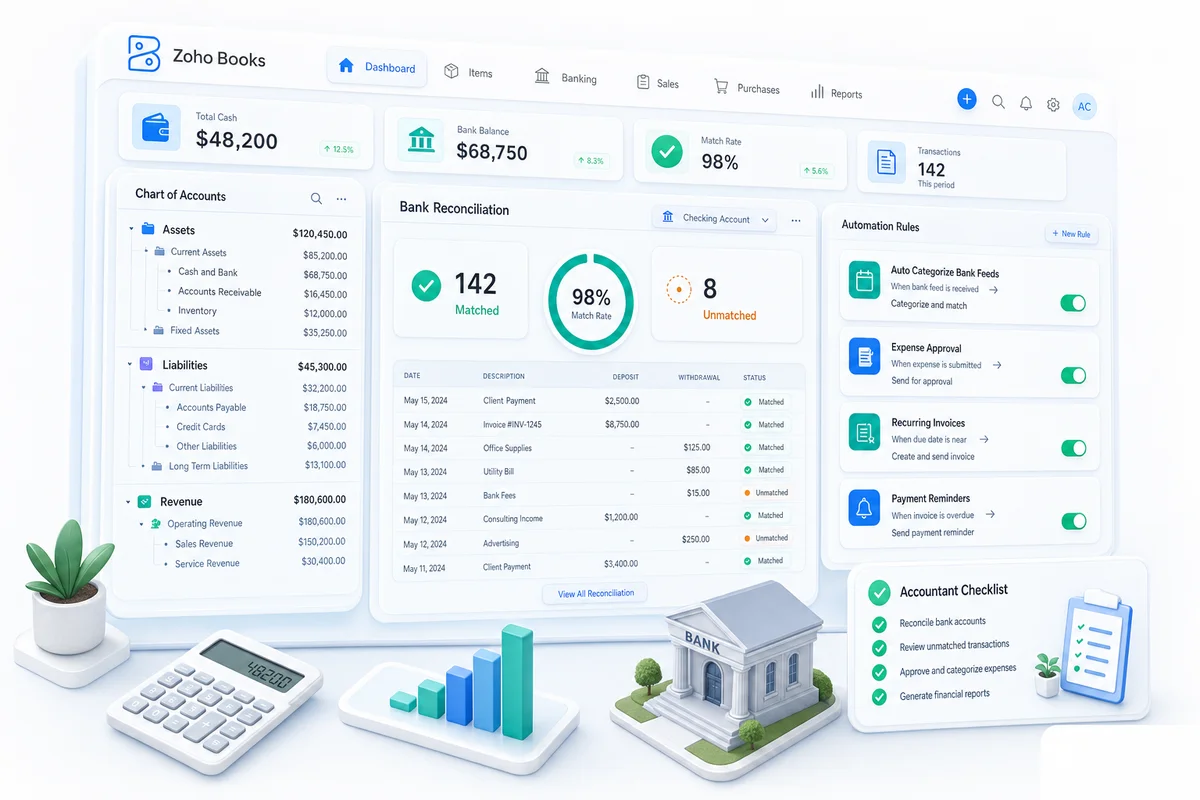
Bank reconciliation is the highest-volume daily task for most practices. For eCommerce clients running Shopify, Amazon, and WooCommerce, it gets more complex: payouts are net settlements after fees, refunds, and adjustments, not straightforward deposits. Our Zoho Books bank reconciliation guide for eCommerce clients covers the full setup for multi-channel sellers.
Connect bank feeds
- Go to Banking > Add Bank or Credit Card
- Search for the client's bank
- Authenticate using the client's banking credentials (or have the client complete this step)
- Select the accounts to connect
- Set the start date for feed import, typically the migration date or the first of the current month
If a direct feed is not available:
- Set up manual bank statement import (CSV, OFX, QIF formats)
- Schedule a weekly or daily import process
- Consider using Plaid or Yodlee as intermediary connectors
Configure bank rules
Bank rules handle the majority of transactions automatically once you set them up. The structure is simple: a condition triggers an action.
Example:
- Condition: transaction description contains "AMAZON WEB SERVICES"
- Action: categorize as 6320 Cloud Hosting, tag as "AWS"
Best practices:
- Start with the client's 20 most frequent transactions (these cover 60–80% of volume)
- Use "contains" matching rather than "exact match" for flexibility
- Create rules for payroll, rent, utilities, and subscriptions first
- Use tags or classes for multi-department or multi-project tracking
- Set rules to auto-categorize (rather than suggest) for high-confidence transactions
- Review and refine rules monthly as new patterns emerge
A well-configured Zoho Books account auto-categorizes 80–90% of bank transactions. Your staff handles the remaining 10–20%.
Reconciliation workflow
Establish a consistent workflow across all clients:
- Daily: Bank feed imports automatically. Auto-categorized transactions are matched.
- Weekly: Staff reviews unmatched and uncategorized transactions. New bank rules created for recurring unmatched items.
- Monthly: Full reconciliation review. Statement balance vs. Zoho balance. Outstanding items investigated and resolved.
- Quarterly: Bank rule optimization: delete unused rules, refine matching patterns, add rules for new transaction types.
Step 6: Configure automation
Beyond bank rules, Zoho Books offers workflow automation that reduces manual accounting work across your entire client base. For eCommerce practices, this is where significant time gets recovered: automated categorization of marketplace fees, scheduled recurring entries, and approval workflows that don't require staff to babysit every transaction. See our guide on eCommerce accounting automation with Zoho Books for a detailed breakdown of the full automated flow.
For supplier payments and purchase orders specifically, eCommerce accounts payable automation in Zoho Books covers the full PO-to-payment cycle for Shopify and Amazon sellers managing 10 or more active suppliers. It's the part of the setup most practices underscope, and the one that causes the most friction heading into Q4.
| Automation Type | Example | Benefit |
|---|---|---|
| Invoice reminders | Auto-email at 7, 14, and 30 days overdue | Reduces manual follow-up |
| Bank rules | Categorize AWS charges as Cloud Hosting | Faster reconciliation |
| Expense approvals | Route expenses to manager before posting | Better spend control |
| Scheduled functions | Monthly accrual entries on the 1st | Eliminates recurring manual work |
Invoice automation
- Auto-send recurring invoices on schedule (monthly retainer invoices, subscription billing)
- Payment reminder sequences: automatic email at 7, 14, and 30 days overdue
- Late fee application: automatic calculation based on payment terms
- Thank you emails: auto-send when payment is received
For practices managing B2B clients or eCommerce sellers with wholesale accounts, the accounts receivable automation guide for Zoho Books covers payment reminder sequences, late-fee rules, and the AR aging workflow that surfaces overdue accounts before they reach 90 days.
Expense automation
Zoho Expense integration lets client employees submit expenses via mobile app. Approval workflows route to the right manager; approved expenses post to Zoho Books automatically. The OCR extracts vendor, amount, and date from receipt photos, and you can set spending limits and category restrictions per employee or department.
Workflow rules
- When invoice total exceeds $10,000: notify partner for review before sending
- When a bill arrives from a new vendor: flag for review and W-9/W-8 collection
- When account balance falls below threshold: alert client and accountant
- When a journal entry is created: route for manager approval if amount exceeds threshold
Scheduled functions
For advanced automation, Zoho's Deluge scripting lets you build custom scheduled functions:
- Monthly accrual entries: automatically create prepaid expense amortization entries on the first of each month
- Intercompany charges: post monthly management fee invoices between related entities
- Revenue recognition: calculate and post recognition entries based on delivery milestones
- Data integrity checks: a nightly script that flags duplicate transactions, missing categorizations, or out-of-balance conditions
Need custom Zoho Books automation? Talk to a Zolify implementation specialist about configuring advanced workflows for your practice.
Step 7: Set up reporting dashboards
Client-level reports (Zoho Books)
Configure these standard reports for every client as a monthly package:
- Profit and Loss (current month, YTD, vs. prior year)
- Balance Sheet (current month end)
- Cash Flow Statement (current month)
- Accounts Receivable Aging
- Accounts Payable Aging
- General Ledger (for accountant review)
Zoho Books can schedule reports to generate and email automatically. Set up monthly packages that arrive in client inboxes on the 5th of each month without manual effort.
Practice-level dashboards (Zoho Analytics)
Connect Zoho Analytics to aggregate data across client organizations. Our Zoho Analytics dashboards guide covers the full setup, including custom data sources, calculated fields, and automated report delivery.
Practice management dashboard:
- Total clients under management
- Aggregate revenue across all clients
- Clients by status (active, onboarding, at risk)
- Staff utilization and workload distribution
Client health dashboard:
- Bank reconciliation status per client (current, 1 week behind, 2+ weeks behind)
- Open invoice aging across all clients
- Clients with overdue tasks or missing documents
- Month-end close status per client
Financial performance dashboard:
- Revenue per client (your firm's fees)
- Hours per client per month (trending)
- Client profitability (fees minus cost of service)
- Realization rate by staff member
Multi-client management best practices
Standardize everything
Use the same COA numbering convention, bank rule naming, report templates, and monthly close checklist across all clients. When everything follows the same pattern, any staff member can pick up any client without a learning curve. New hires ramp up in days, not months.
Use client portals
Enable the Zoho Books client portal for every client. Clients can view invoices, upload receipts, and approve estimates directly, reducing email volume by 50–70% for most practices.
Monthly close checklist
Build a standardized checklist in Zoho Projects or a Zoho Sheet for each client covering: bank feeds through month end, transaction categorization, bank and credit card reconciliation, recurring entries (depreciation, amortization, accruals), AR/AP aging review, payroll reconciliation, sales tax filing, and monthly report delivery. For eCommerce clients on Shopify, Amazon, or WooCommerce, the January year-end close adds several multi-channel steps beyond a standard close — the eCommerce year-end close checklist for Zoho Books covers the full sequence including gateway reconciliation, COGS finalization, period lock, and tax handoff.
Onboarding new clients
Once the template org is locked, onboarding each new client follows the same steps:
- Create Zoho Books organization from industry template
- Import chart of accounts and customer/vendor lists
- Connect bank feeds and configure rules for top 20 recurring transactions
- Set up recurring invoices, bill payments, and client portal access
- Train client on receipt upload and invoice approval
- Run first-month parallel operation, then transition to steady state
eCommerce client setup: Shopify, Amazon, and WooCommerce
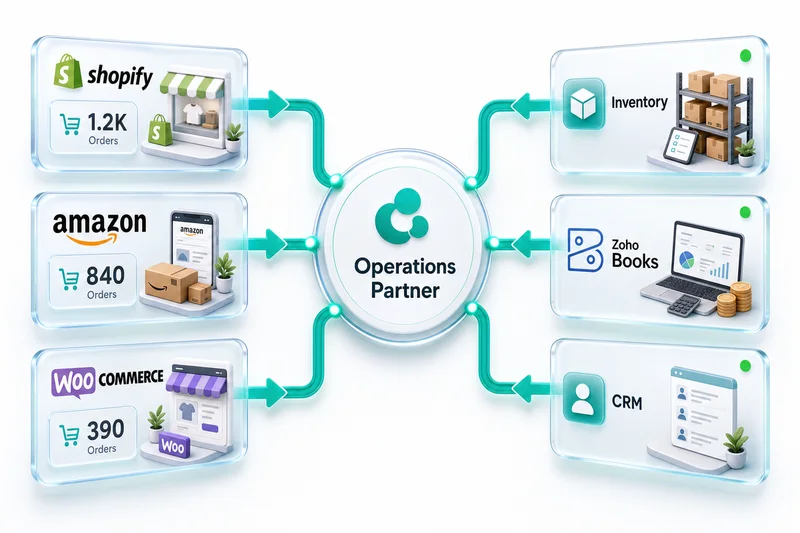
If your firm manages eCommerce clients on Shopify, Amazon, or WooCommerce, Zoho Books setup needs extra attention around marketplace payouts, payment gateway fees, inventory, sales tax, and multi-currency transactions. Not sure where your current eCommerce clients have gaps? Zolify's free eCommerce ops audit identifies the exact configuration issues before they become reconciliation problems.
For a broader look at how Zoho handles the full eCommerce accounting stack, see Zoho for eCommerce.
Chart of accounts for eCommerce
Revenue accounts
- 4100 Product Sales: Shopify
- 4200 Product Sales: Amazon
- 4300 Product Sales: WooCommerce
- 4400 Product Sales: Wholesale
- 4500 Shipping Revenue
- 4900 Returns and Allowances (contra-revenue)
Cost of goods sold
- 5100 Product Cost (inventory)
- 5200 Freight In / Landed Cost
- 5300 Amazon FBA Fees
- 5310 Amazon Referral Fees
- 5320 Amazon Storage Fees
- 5400 Shopify Transaction Fees
- 5500 Shipping Costs (outbound)
- 5600 Packaging Materials
- 5700 Returns Processing Costs
Marketplace and platform fees
- 6100 Shopify Subscription
- 6110 Shopify App Fees
- 6200 Amazon Professional Seller Fee
- 6300 Payment Processing Fees (Stripe, PayPal)
- 6400 Marketplace Advertising (Amazon PPC, Shopify Ads)
Most eCommerce businesses on QuickBooks dump all marketplace fees into one "Fees" account. Breaking them out by type and channel lets you calculate true profitability per channel and per product. The difference between knowing you're profitable and knowing which channels and products are actually driving it.
Shopify client setup
Shopify clients have a predictable payout structure, which makes Zoho Books setup relatively straightforward if you configure it correctly from the start. The integration between Shopify and Zoho Books handles order sync, invoice creation, and payment matching automatically when set up through the Shopify–Zoho integration.
Key configuration points for Shopify clients:
- Create a dedicated Shopify Payments clearing account for net payout deposits
- Configure bank rules to recognize "SHOPIFY" payout descriptions
- Set up matching logic between gross sales invoices and net settlement amounts
- Track Shopify app fees and transaction fees as separate expense lines
Amazon FBA and Seller Central setup
Amazon is the most complex of the three major marketplaces to set up correctly. Settlements arrive every 14 days as net figures that bundle product sales, FBA fees, advertising charges, refunds, and adjustments into a single deposit. For a full breakdown of how Zoho Books handles Amazon accounting, see Amazon accounting software on Zoho Books: it covers the settlement parsing and fee mapping that generic accounting tools miss entirely.
The Amazon–Zoho integration handles the Seller Central data sync. Your job as the accountant: make sure the COA has enough granular fee accounts on the Zoho Books side to receive the data correctly.
Amazon settlements:
- Amazon pays every 14 days (or more frequently with daily disbursement)
- Each settlement includes product sales, shipping credits, refunds, FBA fees, referral fees, advertising costs, and adjustments, all netted into a single deposit
- Create a dedicated Amazon settlement clearing account; bank rules match incoming deposits to this account
- Use a custom integration or the Amazon–Zoho integration to parse settlement line items into the correct fee accounts (FBA, referral, storage, advertising separate)
- Reconcile the net deposit against the sum of individual order entries; variances typically trace to refunds, chargebacks, or SAFE-T claims processed mid-period
- Zolify handles this configuration for every Amazon seller implementation; the settlement structure is predictable once the accounts are set up correctly
WooCommerce client setup
WooCommerce clients typically use Stripe or PayPal for payment processing, which adds a layer of gateway reconciliation on top of the standard eCommerce setup. The WooCommerce–Zoho integration handles the order data sync; the accounting configuration follows the same channel-based COA structure as Shopify and Amazon.
PayPal and Stripe:
- Configure as separate bank accounts in Zoho Books
- Import transaction feeds directly (both support Zoho bank feed connections)
- Create bank rules for recurring transaction types: subscription payments, marketplace payouts, refunds
Multi-currency for international selling
If your eCommerce clients sell internationally on Amazon UK, Amazon EU, or international Shopify stores:
- Set base currency correctly before any transactions are created (cannot be changed later)
- Add all selling currencies: GBP, EUR, CAD, AUD are the most common for multi-channel sellers
- Configure automatic exchange rate updates (daily rates from Zoho's feed)
- Create foreign currency bank accounts for each marketplace payout currency
- Set up realized and unrealized gain/loss tracking to catch currency fluctuations between order date and payout date
- Map VAT and GST rates for international jurisdictions where your client has obligations
A common mistake: using USD equivalents for all transactions and ignoring actual currency. This creates tax reporting issues and hides the real profitability of international channels. Always transact in the actual currency.
International selling adds more complexity than most practices anticipate. For a complete setup walkthrough covering exchange rate configuration, per-currency bank accounts, and FX gain/loss tracking, see our multi-currency eCommerce accounting guide for Zoho Books.
For a full walkthrough of matching Amazon settlements, Shopify payouts, and eBay disbursements in Zoho Books, see our marketplace fee reconciliation guide.
Common setup mistakes to avoid
| Mistake | Why It Hurts | Better Approach |
|---|---|---|
| Not using account numbers | Working across 20+ clients with different COA structures becomes confusing fast | Enable account numbers from day one |
| Over-customizing per client | Each unique setup reduces team efficiency and extends onboarding time | Standardize 80%, customize 20% |
| Skipping bank rule setup | Manual categorization on every transaction; "set up later" never happens | Configure rules during initial setup |
| Not using the client portal | Clients email receipts and documents, creating extra work with no audit trail | Enable the client portal for every client |
| Manual report generation | Staff spends hours running and emailing reports every month | Schedule automated report delivery in Zoho Books |
| Single "Fees" account for eCommerce | Can't calculate per-channel margin or identify which marketplace fees are rising | Create separate fee accounts per platform from day one |
Get help with your setup
This guide covers the fundamentals. Every practice has different requirements, so here's what we handle on an implementation engagement:
- Setting up Zoho Books across 10, 20, or 50+ client organizations
- Migrating clients from QuickBooks to Zoho Books
- Migrating clients from Xero to Zoho Books
- Building custom automation with Deluge scripting
- Creating practice-level dashboards in Zoho Analytics
- Training your staff on Zoho Books workflows
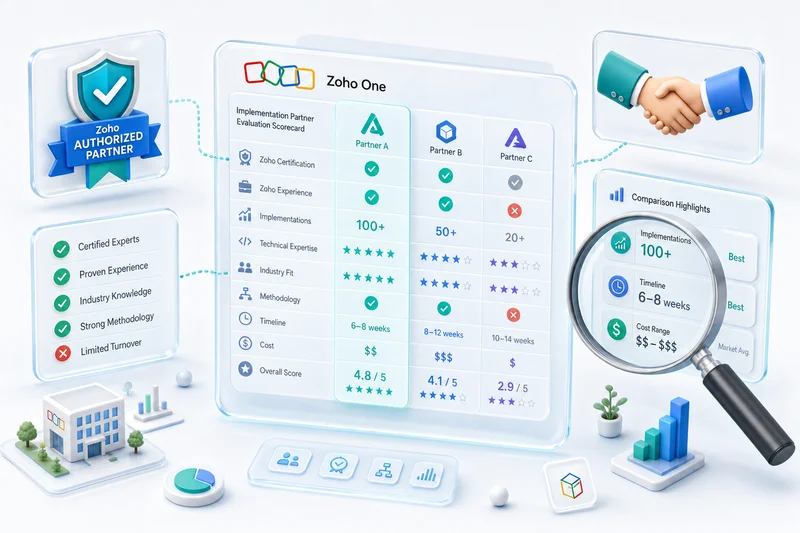
Before selecting an implementation partner, it's worth knowing what to look for. Our guide on how to choose a Zoho implementation partner covers the criteria, typical project costs, and what 'Zoho Authorized Partner' actually means in practice.
Zolify specializes in Zoho implementations for accounting practices. With 100+ implementations completed, a chartered accountant on staff, and Official Zoho Authorized Partner status, we understand both the software and the accounting. We configure Zoho the way accountants actually work. For practices that want ongoing bookkeeping handled after setup, our managed accounting service covers monthly reconciliation, CA oversight, and client-level reporting.
Frequently Asked Questions
Start by creating your organization in Zoho Books with the correct fiscal year, base currency, and tax settings (these are difficult to change after transactions are recorded). Then build your chart of accounts, configure tax rates and groups, set up user roles and permissions, and connect bank feeds. For practices onboarding eCommerce clients on Shopify or Amazon, set up channel-specific revenue accounts and marketplace payout bank rules from day one.
For accounting practices managing multiple clients, each client typically needs their own Zoho Books organization, with your team added as Accountant users. Zoho Books pricing updates periodically, so verify current plan costs with your Zoho account manager or an authorized partner before onboarding. As a general guide, the Standard plan covers most small-business clients needing basic invoicing and reconciliation; the Professional plan suits clients with purchase orders, bills, or project tracking. eCommerce clients with high transaction volume typically need the Professional plan for the automation and reporting headroom.
Amazon pays every 14 days as a net deposit that bundles product sales, FBA fees, referral fees, advertising charges, and refunds into a single figure. To reconcile this correctly in Zoho Books, you create separate accounts for each fee type (FBA fees, referral fees, storage fees), a dedicated clearing account for incoming settlement deposits, and bank rules that match 'AMAZON' deposit descriptions to that clearing account. The Amazon–Zoho integration can parse settlement line items directly to the correct accounts. Setting this up right from the first settlement avoids months of reclassification work. Zolify configures this structure as a standard part of every Amazon seller implementation.
Yes. Zoho Books supports automatic bank feeds that pull transactions directly from bank and credit card accounts. Once connected, bank rules auto-categorize recurring transactions, achieving 80–90% categorization rates when rules are properly configured. For eCommerce clients, you can also configure separate feed rules for Shopify Payments, Amazon settlement deposits, and PayPal to handle net payout reconciliation correctly.
Zoho Books offers stronger automation, lower per-client cost, and better integration with a broader ecosystem (CRM, Inventory, Analytics). QuickBooks Online Accountant has deeper US tax integration and a larger existing accountant user base. For practices managing eCommerce clients on Shopify, Amazon, or WooCommerce, Zoho Books' native integrations and per-channel COA structure are a clear operational advantage. See our full breakdown at /blog/zoho-vs-quickbooks-comparison/.
See exactly where your Shopify, Amazon, or WooCommerce ops are leaking — free.
Get a personalised eCommerce Ops Audit: inventory gaps, accounting leaks, and order-flow bottlenecks — with a Zoho fix roadmap. Delivered in 48 hours, at no cost.