HubSpot to Zoho CRM Migration: Complete Guide (2026)
Step-by-step guide to migrating from HubSpot to Zoho CRM. Covers data mapping, workflow rebuilds, pricing comparison, and common pitfalls to avoid.
HubSpot's free CRM is how most teams get started. It works — until you need more than the basics. That's when the pricing jumps hit.
HubSpot Sales Hub Professional runs $100 per seat per month. Want marketing automation on top? Marketing Hub Professional starts at $800 per month for 2,000 contacts. Need both? You're looking at serious money fast, and the price only climbs as your list grows.
Zoho CRM Professional is $23 per seat per month. Enterprise is $40. No contact-based surcharges. No surprises when you cross a tier.
We've migrated teams from HubSpot to Zoho CRM across industries — 5-person startups that outgrew the free tier, 100-person sales orgs tired of paying $150 per seat at Enterprise. This guide covers exactly how the migration works, what to watch out for, and how to get it done without losing anything.
TL;DR: Switching from HubSpot to Zoho CRM saves most teams 70–77% on per-seat licensing. HubSpot Sales Hub Professional runs $100/seat/month (minimum 5 seats); Zoho CRM Professional is $23/seat/month with no seat minimums. A 20-person sales team saves over $18,000 annually. Data migrates cleanly; workflows, sequences, and reports must be rebuilt in Zoho equivalents.
October and November: Why Annual Review Season Is the Right Time to Switch
Most HubSpot contracts renew in Q4. October and November are when eCommerce teams sit down with their software spend, look at the Q3 numbers, and decide what stays and what goes before the year closes.
It's also when the pressure test happens. Black Friday and Cyber Monday expose every gap in your operations stack. If your CRM can't segment Shopify customers by purchase history for a promotional campaign, or if your sales pipeline has no visibility into which deals came from which channel, you feel it in November — right when it matters most.
For eCommerce businesses on Shopify, Amazon, or WooCommerce, migrating to Zoho CRM before Q4 closes means you enter the next year with a system properly integrated with your storefront, inventory, and finance stack. A migration kicked off in early October can complete data transfer and workflow rebuilds by late October, leaving November for team training and the parallel run. You're in Zoho CRM before the new year budget gets approved.
If you're in an annual contract review window right now, this guide gives you everything you need to make the call and execute the move. Planning ahead for next Q4? See our guide on eCommerce peak season readiness with Zoho for what your full operations setup should look like heading into the holiday run.
Why People Leave HubSpot
HubSpot makes a great first impression. The free CRM is genuinely useful, the onboarding is smooth, and the UI is clean. Nobody argues with that. But the cracks show once you start scaling.
The pricing cliff
HubSpot's pricing does not scale gradually. It jumps.
| Product | HubSpot (per seat/month) | Zoho CRM (per seat/month) | Savings |
|---|---|---|---|
| Free tier | $0 (limited features) | $0 (up to 3 users) | — |
| Starter | $20 | $14 (Standard) | 30% |
| Professional | $100 (min. 5 seats) | $23 (Professional) | 77% |
| Enterprise | $150 (min. 10 seats) | $40 (Enterprise) | 73% |
HubSpot now enforces seat minimums at the Professional tier: 5 seats minimum ($500/month floor) and 10 seats minimum at Enterprise ($1,500/month floor). Zoho CRM has no seat minimums — you pay for exactly what you use. These are Sales Hub prices. If you also use Marketing Hub, the costs compound. Marketing Hub Professional starts at $800/month for 2,000 marketing contacts, and the price scales steeply as your list grows. Zoho Campaigns is included in Zoho One ($37/user/month billed annually, for 45+ apps) or available standalone from $4/month.
Feature gating catches you off guard
HubSpot locks critical features behind the Professional tier ($100/seat/month, 5-seat minimum — $500/month floor):
- Sequences (automated email follow-ups): Professional and above only
- Custom reporting: Professional and above
- Workflow automation: Professional and above (limited to 300 workflows)
- Multiple deal pipelines: Professional and above
- Calculated properties: Professional and above
- Required fields: Professional and above
In Zoho CRM, workflow automation starts at Standard ($14/user/month). Multiple pipelines, custom reports, and calculated fields are available on Professional ($23/user/month). You get more functionality at a lower tier.
Contact-based pricing on Marketing Hub
This is the one that really stings. HubSpot Marketing Hub charges based on the number of marketing contacts in your database. Once you pass 2,000 contacts on Professional, you pay extra, and the cost scales steeply. A 50,000-contact marketing database on HubSpot Marketing Hub Professional can run $1,400+ per month just for marketing automation.
Zoho Campaigns and Zoho Marketing Automation do not use contact-based pricing tiers in the same way. You pay per user, not per contact.
What Zoho CRM's HubSpot Migration Tool Does
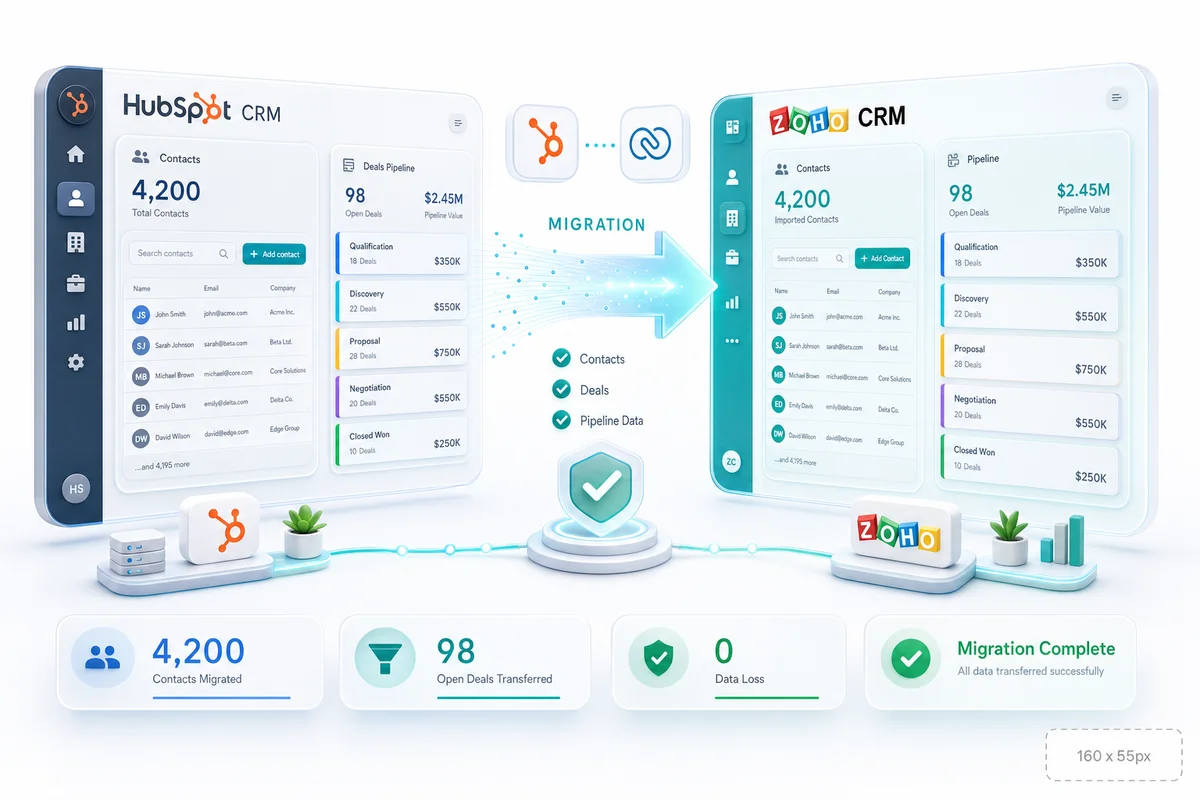
Zoho CRM has a HubSpot migration wizard built right in. You will find it under Setup > Data Administration > Import > HubSpot. Here is what it covers (and what it leaves out).
Supported modules
- Contacts → Contacts
- Companies → Accounts
- Deals → Deals
- Tickets → Cases
- Tasks → Tasks
- Notes → Notes
- Calls → Calls
- Attachments → Attachments
How it works
- Export your HubSpot data as CSV files
- Upload to Zoho CRM's migration wizard
- The tool auto-detects modules based on CSV headers
- Auto Map matches HubSpot columns to Zoho CRM fields
- Review and adjust the mapping, especially deal stages and custom properties
- Set default values for any empty required fields
- Run the migration
- Validate each module after completion
What it handles well
- Standard contact, company, and deal records
- Basic field values (text, numbers, dates, checkboxes)
- Record ownership (mapped to active Zoho users)
- Contact-to-company associations
- Notes and attachments linked to parent records
What needs manual work
- Workflows. HubSpot workflows do not transfer. Rebuild them as Zoho Workflow Rules or Blueprints
- Sequences. Rebuild as Zoho Cadences
- Lists. Active and static lists must be recreated as Zoho custom views or segments
- Forms. Rebuild using Zoho Forms or Zoho CRM web forms
- Landing pages. Recreate in Zoho Sites or Zoho PageSense
- Email templates. Must be recreated in Zoho CRM's email template builder
- Reports and dashboards. Rebuild from scratch in Zoho's report builder
- Custom coded actions. HubSpot Operations Hub custom code must be rewritten in Deluge
Data Mapping: HubSpot to Zoho CRM
Here's the part most people jump to first: what goes where.
Object-to-module mapping
| HubSpot Object | Zoho CRM Module | Notes |
|---|---|---|
| Contacts | Contacts | Direct mapping |
| Companies | Accounts | Direct mapping |
| Deals | Deals | Deal stage values must match |
| Tickets | Cases | Or Zoho Desk for full helpdesk |
| Tasks | Tasks | Direct mapping |
| Notes | Notes | Direct mapping |
| Calls | Calls | Direct mapping |
| Products | Products | Direct mapping |
| Line Items | Products (in Deals) | Linked to Deals |
| Custom Objects | Custom Modules | Available on HubSpot Enterprise; map to Zoho custom modules |
| Meetings | Events | Direct mapping |
Property-to-field mapping
| HubSpot Property Type | Zoho CRM Field Type | Notes |
|---|---|---|
| Single-line text | Single Line | Clean transfer |
| Multi-line text | Multi Line | Clean transfer |
| Number | Number | Clean transfer |
| Date picker | Date | Clean transfer |
| Datetime | DateTime | Clean transfer |
| Dropdown select | Pick List | Values must be pre-created in Zoho |
| Multiple checkboxes | Multi-Select | Delimiter formatting may differ |
| Checkbox (single) | Checkbox | Clean transfer |
| Currency | Currency | Clean transfer |
| Calculation | Formula | Must be manually recreated in Zoho formula syntax |
| Score | Number + Scoring Rule | Zoho uses Scoring Rules; cannot directly import scores |
| Rich text | Multi Line (Rich Text) | May lose some formatting |
Watch out for: HubSpot's default properties have internal names that differ from their display names. When you export a CSV, the column headers use internal names (e.g., hs_object_id, createdate, dealstage). Zoho's auto-mapper may not recognise these. You will need to manually map several columns.
What transfers cleanly
- Contact and company records with standard properties
- Deal records (name, amount, close date, pipeline, stage)
- Basic activity records (tasks, notes, calls)
- File attachments linked to records
- Record ownership (if users are mapped correctly)
What you lose (or need to recreate)
| HubSpot Feature | Zoho CRM Equivalent | What Happens |
|---|---|---|
| Workflows | Workflow Rules / Blueprint | Must rebuild from scratch |
| Sequences | Cadences | Must rebuild; different approach |
| Active Lists | Custom Views / Segments | Must recreate filter logic |
| Static Lists | Tags or Custom Views | Export and re-tag |
| Forms | Zoho Forms / Web Forms | Must rebuild |
| Landing Pages | Zoho Sites / PageSense | Must rebuild |
| Meeting Scheduler | Zoho Bookings | Must reconfigure |
| Chatflows/Bots | Zoho SalesIQ | Must rebuild |
| Email tracking history | Activity timeline | Partial (see pitfalls section) |
| Lead scoring | Scoring Rules | Must recreate scoring criteria |
| Custom reports | Reports Module | Must rebuild |
| Dashboards | Analytics Dashboard | Must rebuild |
Migrating eCommerce CRM Data: Shopify, Amazon, and WooCommerce
For eCommerce businesses, the migration isn't just contacts and deals — it's the relationship between your CRM data and your entire order history.
Shopify customer data
When Shopify connects to Zoho CRM, Shopify customers become Contacts and Shopify orders map as Activities or custom module records. If you used HubSpot's Shopify integration, your Shopify contacts were synced to HubSpot Contacts with order history visible in the contact timeline.
Before migrating: export HubSpot Contacts with their Shopify-mapped properties (total spent, order count, last order date). Create matching custom fields in Zoho CRM — "Total Shopify Spend," "Shopify Customer ID," "Last Order Date" — before importing. After migration, reconnect Shopify to Zoho CRM via the native integration to keep order data flowing forward.
Amazon seller and WooCommerce data
Amazon buyer contacts export as standard contact records. If you had custom order history imports in HubSpot, re-export those records and re-map them to Zoho CRM contacts. For Amazon sellers using Zoho Inventory alongside Zoho CRM, order data lives in the same ecosystem — no third-party connector required.
WooCommerce customers connected via HubSpot's WooCommerce plugin synced purchase data as custom properties. Export all WooCommerce-synced contacts with their purchase properties, note which deal records are linked to WooCommerce orders, then reconnect using the Zoho CRM for WooCommerce integration after go-live.
eCommerce deal records and order history
If your sales team created HubSpot deals linked to customer orders — common for B2B eCommerce, subscription, and wholesale accounts — these migrate as standard Deals. Key requirement: ensure your Zoho deal stages match HubSpot's exactly before the import, and add a custom field for "Order Reference" or "WooCommerce Order ID" so the link back to the storefront stays intact after migration.
For teams using Zoho CRM to drive repeat buyer revenue through segments and automated workflows, see our guide on eCommerce customer retention with Zoho CRM.
Step-by-Step Migration Process
Step 1: Audit your HubSpot account
Before you touch the export button, make a list of everything you are actually using.
- Custom properties. List every custom property across Contacts, Companies, and Deals. Note the property type, because you will need to create matching fields in Zoho.
- Workflows. Document every active workflow: what triggers it, what actions it takes, which objects it affects. Screenshot the workflow editor if it helps.
- Sequences. Note every active sequence, how many steps it has, and which reps use it. You will rebuild these as Zoho Cadences.
- Lists. Document every active list and its filter criteria. Static lists need to be exported separately.
- Forms and landing pages. List every form that feeds leads into HubSpot and every landing page that is live.
- Integrations. What third-party tools connect to HubSpot? Slack, Gmail/Outlook, QuickBooks, Shopify, Amazon, WooCommerce, Zapier automations. List every active integration and confirm there is a Zoho equivalent before migration day.
- Reports. Screenshot or list the reports and dashboards your team checks regularly.
A proper audit takes a day, maybe two. It saves weeks of confusion later.
Step 2: Clean up your data
HubSpot's free tier encourages importing contacts freely, which means most HubSpot databases have bloat.
- Merge duplicates. HubSpot's built-in deduplication tool handles contacts and companies. Run it before export.
- Remove dead contacts. Bounced emails, unsubscribed contacts, and contacts with no activity in 12+ months. Decide whether they are worth migrating.
- Standardize property values. If your "Lead Source" dropdown has "Website", "website", "Web", and "Online", pick one and fix the rest.
- Delete test records. Demo deals, test contacts, sandbox data. Clean it out.
- Check associations. Make sure contacts are linked to the right companies and deals. Broken associations in HubSpot become broken associations in Zoho.
Step 3: Set up your Zoho CRM organization
Get Zoho CRM configured before importing anything. Our Zoho CRM setup guide walks through pipeline design, module structure, and automation sequencing if you want a reference alongside the migration.
- Create your org with the correct currency and fiscal year
- Set up roles and profiles (Zoho's hierarchy model differs from HubSpot's teams structure)
- Create custom modules if you are migrating HubSpot custom objects
- Add all custom fields with matching field types
- Pre-create picklist values. Every dropdown value that exists in HubSpot needs to exist in Zoho before import
- Set up your deal pipeline stages to match HubSpot's pipeline exactly (you can rename or restructure later, but match them for the import)
Take the time here. A properly configured Zoho CRM org means clean imports. A rushed setup means hours of manual fixes.
Step 4: Export data from HubSpot
HubSpot makes exporting straightforward.
For Contacts, Companies, and Deals:
- Go to the relevant object list in HubSpot
- Click "Export" and select CSV format
- Choose "All properties" to get everything, or select specific properties
- HubSpot emails you the export file (or you can download it directly)
For Activities (Notes, Calls, Tasks, Emails):
- Export from the activity timeline or use the HubSpot API
- Activity exports can be trickier, and not all activity types export cleanly from the UI
- For large datasets or complex activity histories, the HubSpot API (with the CRM API v3 endpoints) gives you more control
For Attachments and Documents:
- Download files from HubSpot's document library manually or via API
- Attachments linked to records need a mapping CSV for Zoho import
API rate limits to know about: HubSpot's API allows 200 requests per second for Enterprise accounts and 150 requests per second for Professional. Daily limits are generous (500,000+ calls/day on paid plans) but if you are using a migration tool that hits the API heavily, throttling can slow things down.
Step 5: Run a trial migration
Pick a representative sample (100 to 300 records) and run them through Zoho's migration wizard first.
Check these things:
- Do contact-to-company associations survive the import?
- Are deal stages mapping correctly? (HubSpot uses pipeline stage IDs internally, so make sure the display names match your Zoho picklist values)
- Are custom property values landing in the right Zoho fields?
- Are date formats correct? (HubSpot exports dates in various formats depending on the property type)
- Do attachments link to the correct records?
Fix mapping issues now. Not after you have imported 50,000 records.
Step 6: Execute the full migration
Import in this order to preserve relationships:
- Users. Map HubSpot users to Zoho CRM users
- Accounts (Companies). Parent records first
- Contacts. Linked to Accounts
- Deals. Linked to Accounts and Contacts
- Cases (Tickets). Linked to Contacts
- Products. Independent
- Tasks, Calls, Events (Meetings). Linked to parent records
- Notes. Linked to parent records
- Attachments. Last, linked via mapping CSV
After each module import, spot-check 10 to 20 records. Verify field values, associations, and ownership. It is much easier to catch a mapping problem after importing Companies than after importing everything.
Step 7: Rebuild workflows and automations
This is where most of the project time actually goes. Moving data is the easy part. Rebuilding your automation logic is the real work.
Workflows → Zoho Workflow Rules or Blueprint
HubSpot workflows and Zoho workflow rules are conceptually similar: trigger on a condition, run an action. But the builders are different, and some HubSpot workflow actions (like "Enroll in sequence" or "Create task") need to be mapped to Zoho's action types.
For complex multi-step processes with stage gates, Zoho's Blueprint is the better fit. It enforces a specific sequence of actions, closer to how HubSpot's newer "Pipeline Automation" works.
Sequences → Zoho Cadences
HubSpot sequences are automated email + task follow-up chains for sales reps. Zoho Cadences serve the same purpose: multi-step follow-up sequences with email, call, and task steps. The setup is different but the concept maps directly.
Lists → Custom Views or Segments
- Active lists (filter-based) → Zoho Custom Views with matching filter criteria
- Static lists → Export the list, tag the records in Zoho, or create a custom view based on a shared property
Forms → Zoho Forms or Web Forms
Zoho CRM has built-in web forms, and Zoho Forms is a more fully featured form builder. Either works. Rebuild each form and update the embed code on your website.
Reports and Dashboards
These must be rebuilt from scratch. Zoho's report builder uses a different approach (tabular, summary, and matrix report types). Document what your HubSpot reports measure and recreate the logic in Zoho.
Step 8: Train your team and run in parallel
Keep HubSpot running in read-only mode for 2 to 3 weeks.
- Your team enters new data in Zoho CRM only
- HubSpot stays available for reference and historical lookups
- Compare pipeline totals, deal counts, and activity metrics between both systems daily
- Have 2 to 3 team members act as go-to people for questions during the transition
The interface shift from HubSpot to Zoho CRM is noticeable. HubSpot's navigation is centered around a top menu bar; Zoho CRM uses a module-based tab system. Give people a week to get comfortable before you judge adoption.
Cancel HubSpot only after your team confirms they can work entirely in Zoho CRM.
Common Pitfalls and How to Avoid Them
1. Deal stage ID vs. display name mismatch
HubSpot stores deal stages internally as IDs, not display names. If your CSV export shows stage IDs instead of names, Zoho's mapper will not recognise them. Export a separate list of pipeline stages from HubSpot Settings > Objects > Deals > Pipelines and use it to map IDs to names before import.
2. Email activity history does not migrate cleanly
HubSpot tracks every email open, click, and reply on the contact timeline. This activity data does not export in a simple CSV format. You can pull it via the HubSpot Engagements API, but importing it into Zoho CRM as structured activity records requires custom scripting. Most teams accept that pre-migration email history stays in HubSpot and start fresh in Zoho.
3. HubSpot default properties have cryptic internal names
Properties like hs_analytics_source, num_associated_deals, or hs_lifecyclestage_lead_date appear in your CSV export with these internal names. Zoho's auto-mapper will not match them. You need to manually map the ones you care about and ignore the rest.
4. Contact lifecycle stages work differently
HubSpot uses a lifecycle stage property (Subscriber → Lead → MQL → SQL → Opportunity → Customer → Evangelist) that drives a lot of reporting and automation. Zoho CRM does not have an equivalent built-in lifecycle concept. You need to create a custom picklist field in Zoho and map HubSpot lifecycle stages to it, then rebuild any automation that depended on lifecycle stage changes.
5. Association labels and types
HubSpot allows custom association labels between objects (e.g., a Contact can be "Decision Maker" or "Billing Contact" for a Company). Zoho CRM lookups do not support association labels in the same way. You may need to use a custom field or tag to preserve this information.
6. Marketing contact vs. non-marketing contact distinction
HubSpot separates marketing contacts (who count toward your billing) from non-marketing contacts. Zoho does not have this concept. All contacts are just contacts. This simplifies things, but if you relied on the distinction for segmentation, create a custom field to track it.
7. Workflow dependency chains
HubSpot workflows can trigger other workflows through enrollment triggers. If you have workflows that depend on each other in sequence, map out the entire chain before rebuilding in Zoho. Rebuilding them individually without understanding the dependencies leads to broken automation.
Get a Free HubSpot Migration Assessment →
What Zoho CRM Does Better Than HubSpot
The cost difference is clear. But price aside, there are things Zoho CRM does that HubSpot either charges extra for or doesn't offer at all.
- More features at lower tiers. Workflow automation, multiple pipelines, and custom reports, all available at a fraction of HubSpot's price.
- No contact-based pricing. Your marketing cost stays flat as your contact list grows. That alone is a reason some teams switch.
- Built-in inventory management. Quotes, Sales Orders, Purchase Orders, and Invoices are native in Zoho CRM Professional. HubSpot requires the Quotes tool (limited on lower tiers) or a third-party integration.
- Canvas Design Studio. Custom CRM layouts with drag-and-drop design. HubSpot has limited record layout customization by comparison.
- Zia AI included. Lead scoring, deal predictions, anomaly detection, and sentiment analysis, all bundled at no extra cost on Enterprise. HubSpot's AI features (Breeze) are newer and more limited.
- Blueprint process enforcement. Guides reps through mandatory steps in a deal process. HubSpot has pipeline rules but nothing as structured.
- Zoho One value. $37/user/month (billed annually) gets you CRM, helpdesk, accounting, project management, HR, marketing, and 40+ more apps. HubSpot's equivalent would cost multiples of that.
- Deeper customization. Deluge scripting, custom modules, custom buttons, client scripts, and server-side functions give you more flexibility than HubSpot's Operations Hub.
What HubSpot Does Better (Worth Knowing)
We wouldn't be doing our job if we skipped this part.
- User experience. HubSpot's interface is genuinely easier to pick up, especially for non-technical users. The learning curve is shorter. That is not marketing, it is true.
- Marketing Hub. HubSpot's marketing automation (email sequences, landing pages, blog hosting, social scheduling, SEO tools) is more mature than Zoho's marketing stack for inbound-heavy strategies.
- Content management. HubSpot's CMS Hub is a full website builder integrated with the CRM. Zoho Sites exists but is not at the same level.
- App marketplace. HubSpot's App Marketplace has 1,500+ integrations with strong documentation and one-click installs. Zoho Marketplace is smaller, though Zoho Flow fills many gaps.
- Community and education. HubSpot Academy, the community forums, and the knowledge base are among the best in the industry. Zoho's resources are improving but not yet at that level.
- Free tier generosity. HubSpot's free CRM is more feature-rich than Zoho's free tier for small teams that never need to scale.
If inbound marketing is the core of your strategy and HubSpot Marketing Hub runs a big chunk of it, check whether Zoho's marketing tools cover what you need before committing to the move.
Realistic Timelines
| Org Size | Records | Timeline | Key Variables |
|---|---|---|---|
| Small | Under 1,000 | 1-2 weeks | Few custom properties, minimal automation |
| Medium | 1,000-50,000 | 3-5 weeks | Custom properties, active workflows, some integrations |
| Large | 50,000+ | 6-10 weeks | Custom objects, complex workflow chains, many integrations |
Phase breakdown (medium org)
| Phase | Duration | What Happens |
|---|---|---|
| Audit and planning | 3-4 days | Document properties, workflows, integrations, reports |
| Data cleanup | 3-4 days | Deduplicate, remove dead contacts, standardize values |
| Zoho CRM setup | 3-5 days | Configure modules, fields, pipelines, roles |
| Data migration and testing | 2-3 days | Trial import, full import, validation |
| Workflow rebuilds | 1-2 weeks | Recreate workflows, cadences, reports, forms |
| Training and parallel run | 2-3 weeks | Team training, dual-system operation, final validation |
Same pattern as every CRM migration: the data moves fast. It's the automation rebuilds and getting people comfortable on the new platform where the calendar fills up.
DIY vs. Hiring a Migration Partner
DIY makes sense when:
- Under 1,000 contacts with standard properties
- Fewer than 5 active workflows
- No custom objects
- Your team is comfortable with CRM administration
- You have time to learn Zoho's setup
A partner makes sense when:
- You have complex workflow chains that depend on each other
- Custom objects or heavy property customization
- Your pipeline cannot afford downtime during the switch
- You need integrations rebuilt (Shopify, QuickBooks, Slack, custom APIs)
- Nobody on the team has time to manage a multi-week migration project
We've done this migration over 100 times. It's one of our most common projects at Zolify. We know exactly where data mapping breaks, where workflows need rethinking rather than copying, and how to get teams up to speed on Zoho fast — not after weeks of confusion.
Every migration comes with a zero data loss guarantee. Both systems run side by side until your team says they're ready to cut over.
Plan Your HubSpot to Zoho CRM Migration →
Also in this series: Salesforce to Zoho CRM migration | Pipedrive to Zoho CRM migration | Excel to Zoho CRM migration | Freshsales to Zoho CRM migration | Zoho CRM vs HubSpot comparison
Frequently Asked Questions
Small orgs with under 1,000 contacts can finish in 1 to 2 weeks. Mid-size orgs with 1,000 to 50,000 contacts typically need 3 to 5 weeks. Larger orgs with complex workflows, custom objects, and multiple integrations can take 6 to 10 weeks. The actual data import usually finishes in a day. Most of the time goes into planning, workflow rebuilds, and training.
No, not if the migration is done properly. Standard records like Contacts, Companies, and Deals export cleanly from HubSpot as CSV files and import into Zoho CRM through its built-in migration wizard. The risk areas are activity timelines, email logs, and workflow automation, and these need careful handling. Running a trial migration with a small batch first catches any mapping issues before they affect your full dataset.
Yes. Zoho CRM has a dedicated HubSpot migration wizard under Setup > Data Administration > Import > HubSpot. It supports modules including Contacts, Companies (Accounts), Deals, Tickets (Cases), Tasks, Notes, and Attachments. You upload CSV exports from HubSpot, and the tool auto-maps fields where column headers match.
Workflows, sequences, lists, forms, landing pages, email templates, reports, and dashboards do not transfer automatically. These need to be rebuilt in Zoho CRM using its equivalent features: Workflow Rules, Cadences, custom views, Zoho Forms, and the Zoho report builder. Your data moves over, but the automation logic does not.
HubSpot Sales Hub Professional costs $100 per seat per month with a minimum of 5 seats ($500/month floor). Zoho CRM Professional costs $23 per seat per month with no seat minimums. That is a 77% per-seat saving. At Enterprise level, HubSpot charges $150 per seat with a 10-seat minimum ($1,500/month floor) versus Zoho CRM at $40. For a 20-person sales team on Professional plans, the licensing savings alone exceed $18,000 per year.
See exactly where your Shopify, Amazon, or WooCommerce ops are leaking — free.
Get a personalised eCommerce Ops Audit: inventory gaps, accounting leaks, and order-flow bottlenecks — with a Zoho fix roadmap. Delivered in 48 hours, at no cost.